Updated September 19, 2026
Index Configuration Guide: Managing Stop Words
This guide outlines the configuration of Stop Words within the index settings of a search platform. This feature is critical for optimizing both the relevance of search results and the overall performance of the search engine.
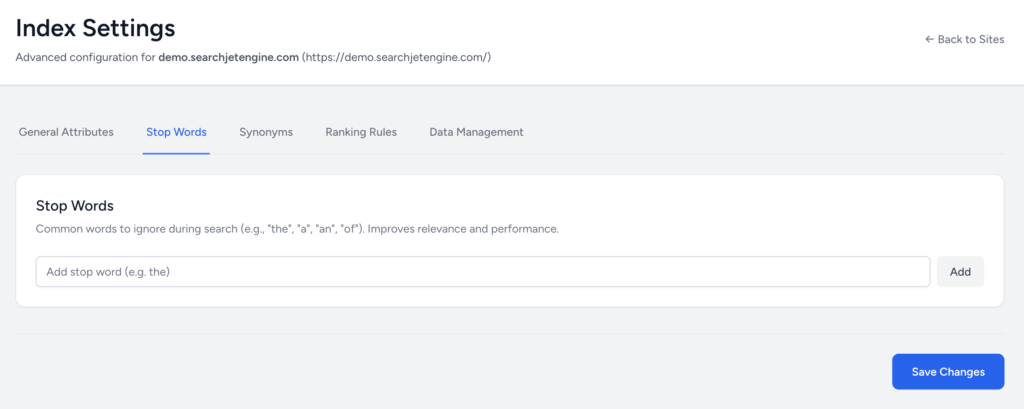
1. Stop Words Configuration
The Stop Words tab, located within the Index Settings, allows administrators to define a list of common, high-frequency terms that should be disregarded during the indexing and querying processes.
| Term | Definition | Benefit |
| Stop Word | A common word that is typically ignored by the search engine's algorithm. | Improves relevance by focusing the search query on significant keywords, and enhances performance by reducing the size of the index and the computational load of processing common, non-descriptive terms. |
| Examples | 'the', 'a', 'an', 'of', 'in', 'is', etc. | If a user searches for "The best laptop in London," the engine will primarily search for "best laptop London." |
2. Management Procedure
The interface allows for the modification of the stop word list by adding individual terms.
Adding a New Stop Word:
- Navigate to the Stop Words section in the Index Settings.
- Locate the input field labeled for adding new stop words.
- Type the desired term (e.g.,
for). Stop words should typically be added as single, lowercase tokens. - Click the Add button to append the word to the index's stop list.
3. Applying Changes
After making any additions to the list, the changes are not live until the configuration is saved.
To finalize the updates and implement the new stop words, click the Save Changes button at the bottom of the page.